
With a User Image, each user uploads their own version of an image. For example, every trainer who issues a credential can add their own logo or signature to the same template.
When to use User Image:
- The signature of the trainer who issues the credential
- The logo of the issuing trainer
Part 1: How to set up an User Image element?
- Go to Settings > Element Library.
- Click Create new element.
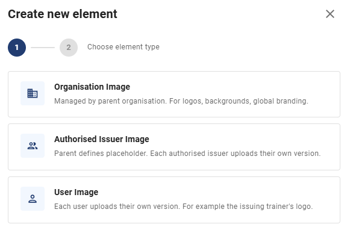
- In the pop-up, select User Image and click Next.
- Upload a placeholder image.
- Add a label and a description for the element, then choose whether uploading a user image is mandatory or optional.
Part 2: How to add User Image element on a credential design?
- Open the template in the Designer.
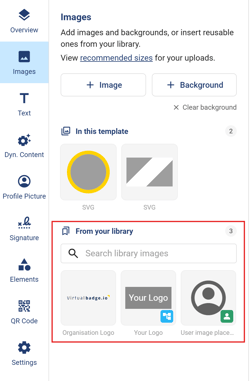
- Go to the Images tab.
- Lastly, select the image you want to add to the template, then place it where you want it in the design.
What happens when you update the image?
As the parent organisation, you can update the position or archive an image element. After updating an image, you will have to manually sync it to every template that uses the element. The updated image will only appear in authorised issuer accounts once this sync is complete.
For recipients: Updates apply to badges and certificates issued after the change has been synced. Credentials already issued to recipients keep the image they were created with.
Deleting an image that’s already in use
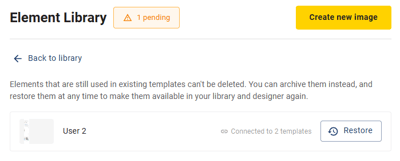
If an image is already used in an active template or has been issued on credentials, you can’t delete it. You can archive it instead, which is the safe alternative. When you click Archive:
- Credentials that have already been issued keep showing the image, so nothing changes for their recipients.
- The image is removed from the active library and can’t be added to new templates.
- The image moves to the Archived folder, where you can restore it at any time.
How do Users add the image?
When they log in to their account, they see a banner:

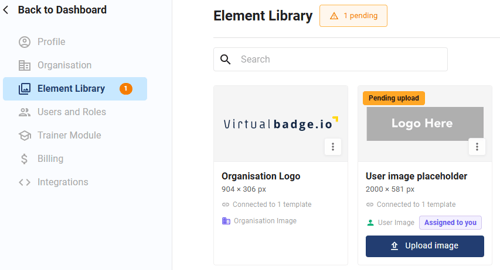
- Click Element Library in the banner, or go to Settings > Element Library.
- Find the element marked Pending upload and Assigned to you.
- Click Upload image and add your version.
- You can review the image preview, then choose Approve or Deny. The image will only be added to the certificate or badge once you approve it.
Important:
Upload your authorised issuer image before adding recipients. If the image is missing, credentials will remain pending or not be generated, and you won’t be able to send the emails.
Availability
Creating additional elements, including Authorised Issuer Images and User Images for extra logos, signatures, or stamps, may require a different plan. If these options aren’t available in your account, contact support or check our pricing page to see which plan includes them.