
Collections help you keep your dashboard organised, especially when you manage a large number of certificate and badge templates. Use them to group credentials by programme, department, event, or any structure that works for your team. You can also create sub-collections within a collection to organise them in more detail.
Ways to Create a Collection
There are three ways to create a new collection:
A. From the Dashboard
- On your dashboard, click the folder icon.

- A pop-up appears. Enter a collection name and click Create.
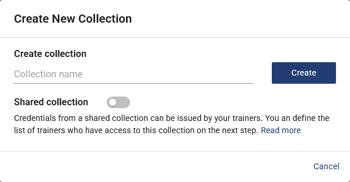
- To add credentials to this collection, drag and drop them into it. Alternatively, right-click or click the three dots on any certificate or badge, select Move Template, choose the target collection and confirm.
B. From Within a Credential
- Open a credential and go to the Basic Details section.
- Click "Select Collection".
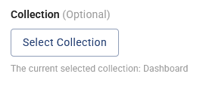
- In the pop-up, you can either create a new collection or move the credential to an existing one.
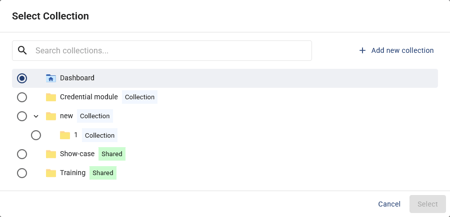
C. From the "Create New Template" Button
- Click the dropdown arrow next to the Create New Template button (yellow) on the dashboard.
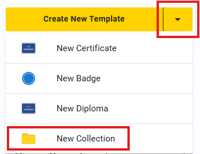
- Select New collection, then follow the same steps as Method A.
How to Create a Sub-Collection
Sub-collections let you add another level of organisation within an existing collection.
- Open a collection.
- Click the add folder icon.

- Follow the same steps as creating a regular collection, give it a name, and click Create.
Your sub-collection will now appear inside the parent collection, helping you maintain a clean and structured dashboard.