---
title: Adding Rich Text to your Credential Templates
description: Add rich text to your credential templates to format text with multiple fonts, sizes, bullet points, and structured layouts—creating professional, visually engaging certificates with ease.
---
[Skip to content](https://help.virtualbadge.io/article/adding-rich-text-to-your-credential-templates#main-content)
- [English](https://help.virtualbadge.io/article/adding-rich-text-to-your-credential-templates)
- [Deutsch](https://help.virtualbadge.io/de/article/adding-rich-text-to-your-credential-templates)
English
Show submenu for translations
[Contact Support](https://help.virtualbadge.io/article/kb-tickets/new?hsLang=en)
[](https://www.virtualbadge.io/)
Open main navigation
Close main navigation
- - [English](https://help.virtualbadge.io/article/adding-rich-text-to-your-credential-templates)
- [Deutsch](https://help.virtualbadge.io/de/article/adding-rich-text-to-your-credential-templates)
English
Show submenu for translations
- [Contact Support](https://help.virtualbadge.io/article/kb-tickets/new)
- [Go to Admin Dashboard](https://admin.virtualbadge.io/)
[Go to Admin Dashboard](https://admin.virtualbadge.io/)
Hello! How can we help you?
- There are no suggestions because the search field is empty.
1. [Help Articles Virtualbadge.io](https://help.virtualbadge.io/article?hsLang=en)
2. [Credential Design](https://help.virtualbadge.io/article/credential-design?hsLang=en)
# Adding Rich Text to your Credential Templates
## Enhance certificate designs with advanced text formatting
Rich Text allows you to format text directly within the certificate designer, giving you more flexibility and control over how content appears. You can combine different text sizes, fonts, and styles in a single text field, add structured elements like bullet points, and create curved text for decorative or formal layouts—helping you design professional, visually appealing certificates with ease.
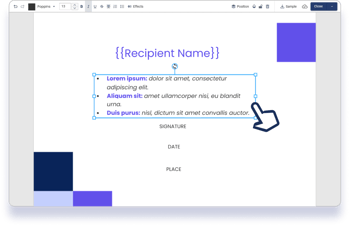
### How to Enable Rich Text?
To enable Rich Text in the Certificate Designer:
1. Open the **Certificate Designer**.
2. Click on the **Settings** tab on the left-hand side.
3. Locate the **Rich Text** option.
4. Toggle the button next to **Rich Text** to enable it.
Once enabled, Rich Text formatting options will be available when editing text fields.
### What You Can Do with Rich Text
### 1. Bullet Points
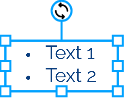
- Add bullet-point lists within a single text field.
- Useful for displaying learning outcomes, competencies, or structured information.
### Behaviour with CSV and API Imports
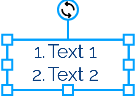
When using **Rich Text (bullet points/ numbered lists)** together with **dynamic fields**, the way your data is structured in a CSV file or sent via the API directly affects how the content appears on the credential. Below are the key behaviours and best practices to keep in mind.
### A. One Dynamic Text Field per Bullet Point (Correct Approach)
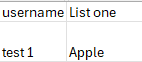
This supported approach involves using **one dynamic text field per bullet or list item**.
**Recommended setup**
- Each bullet point is mapped to its own dynamic field.
- Only fields with data are rendered on the certificate.
- Empty fields are automatically ignored.
This method gives you the most predictable and clean output.
- **Preview from Sample CSV:**
- **Preview from Dynamic Text Field (Designer) and Certificate:**

**What to avoid**
If all bullet points are entered into a single dynamic field **without line breaks or structure**, the text may appear as a continuous block rather than a proper list.
Or you've inserted a line break, or you're trying to use a **single dynamic rich text field to add two separate points.** (Example shown below)
This approach is not recommended unless that layout is intentional.
- **Preview from Sample CSV:**
**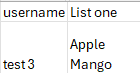**
- **Preview from Dynamic Text Field (Designer) and Certificate:**

### B. One Text Box with Multiple Dynamic Fields (Recommended)
You can use **a single Rich Text text box** on the certificate template and insert **multiple dynamic fields** (for example, bullet points) into that text box.
#### How it works
- Each dynamic field represents one potential bullet or list item.
- In your CSV or API payload, you only need to provide values for the fields that apply to a specific recipient.
- Any dynamic fields left empty will not appear on the final certificate.
#### ❗Important behaviour to note
If a template contains multiple bullet-point dynamic fields (e.g., 5 bullets):
- Recipient 1 may have data for all bullet points
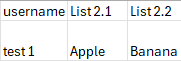
- Recipient 2 may only have data for bullet 2
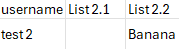
In this case, on the certificate:
- For **Recipient 1**, all data will appear.
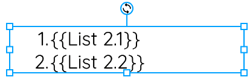
- For **Recipient 2**, the filled dynamic field will automatically shift up and appear as the **first bullet**, and empty bullets will be removed.
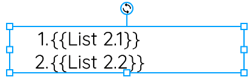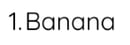
This ensures certificates never display empty or unused bullet points.
### C. Adding Bullet Points in Excel (Optional Method)
When preparing your CSV in Excel:
1. Click inside the cell.
2. Press **Alt + Enter** to start a new line.
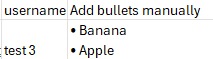
3. Add each bullet point on a new line (using `•` or `-`).
### Example cell content:
`• First learning outcome`
`• Second learning outcome`
`• Third learning outcome`
When exported as CSV and imported, these *line breaks* will be preserved and rendered correctly on the certificate.
- **Preview from Sample CSV:**
****
- **Preview from Certificate Preview:**


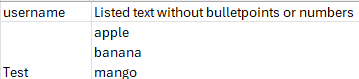
If you want to create lists with a single dynamic field (**without bullet points or numbers**), then
on excel. Add texts with the alt and enter method.
- **Preview from Sample CSV:**
****
- **Preview from Certificate Preview:**


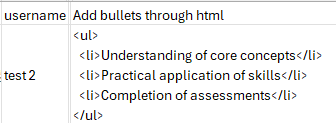
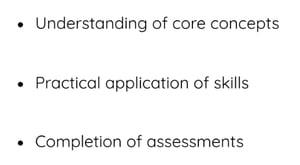
### D. Using HTML (Optional – Advanced)
You may optionally include **HTML** in CSV files or API requests.
### Important considerations:
- HTML rendering depends on spacing and formatting, which may vary.
- You should always **test thoroughly** before finalising templates.
- Simple HTML (e.g. `
`, ``, `- `) generally works best.
- This approach is supported for both **CSV uploads and API-based issuance**.
**Important:** Because spacing and layout can differ depending on the template, HTML should be used only if you are comfortable testing and adjusting the output.
- **Preview from Sample CSV:**
****
- **Preview from Certificate Preview:**
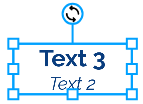
### 2. Multiple Fonts and Text Sizes
- Combine different font sizes, styles, and weights in the same text box.
- Highlight key information without adding multiple text fields.
- [Onboarding & Setup](https://help.virtualbadge.io/article/onboarding-setup?hsLang=en)
- [Features](https://help.virtualbadge.io/article/features?hsLang=en#main-content)
- [Managing Credentials](https://help.virtualbadge.io/article/features?hsLang=en#managing-credentials)
- [Recipient Management](https://help.virtualbadge.io/article/features?hsLang=en#recipient-management)
- [Email Delivery & Customization](https://help.virtualbadge.io/article/features?hsLang=en#email-delivery-customization)
- [Sharing & Social Integrations](https://help.virtualbadge.io/article/features?hsLang=en#sharing-social-integrations)
- [Security & Verification](https://help.virtualbadge.io/article/features?hsLang=en#security-verification)
- [Insights & Reporting](https://help.virtualbadge.io/article/features?hsLang=en#insights-reporting)
- [Credential Design](https://help.virtualbadge.io/article/credential-design?hsLang=en)
- [Access & Share Credentials](https://help.virtualbadge.io/article/access-share-credentials?hsLang=en)
- [Trainer Module](https://help.virtualbadge.io/article/trainer-module?hsLang=en#main-content)
- [Trainer module settings](https://help.virtualbadge.io/article/trainer-module?hsLang=en#trainer-module-settings)
- [Creating a Training](https://help.virtualbadge.io/article/trainer-module?hsLang=en#creating-a-training)
- [Recipients in the Trainer Module](https://help.virtualbadge.io/article/trainer-module?hsLang=en#recipients-in-the-trainer-module)
- [Integrations & API](https://help.virtualbadge.io/article/integrations-api?hsLang=en)
- [Account & Billing](https://help.virtualbadge.io/article/account-billing?hsLang=en#main-content)
- [Billing](https://help.virtualbadge.io/article/account-billing?hsLang=en#billing)
- [Organisation Settings](https://help.virtualbadge.io/article/account-billing?hsLang=en#organisation-settings)
- [User Settings](https://help.virtualbadge.io/article/account-billing?hsLang=en#user-settings)
- [Element Library](https://help.virtualbadge.io/article/account-billing?hsLang=en#element-library)
- [Organisation Hub](https://help.virtualbadge.io/article/organisation-hub?hsLang=en)
- [FAQs](https://help.virtualbadge.io/article/faqs?hsLang=en#main-content)
- [Credential Management](https://help.virtualbadge.io/article/faqs?hsLang=en#credential-management)
- [Trainer Module](https://help.virtualbadge.io/article/faqs?hsLang=en#trainer-module)
- [Email & Delivery Issues](https://help.virtualbadge.io/article/faqs?hsLang=en#email-delivery-issues)
[.png?width=181&height=24&name=Virtualbadge.io%20Dark%20(2).png "Chill listening crop-3")](https://www.virtualbadge.io/)
Virtualbadge.io Help Center
Copyright © 2026, FutureNext GmbH