
In the Element Library, you can create image elements and place them on your certificate and badge templates. There are three image element types. Each controls who provides the image: your organisation, an authorised issuer, or a user.
The three image element types
-
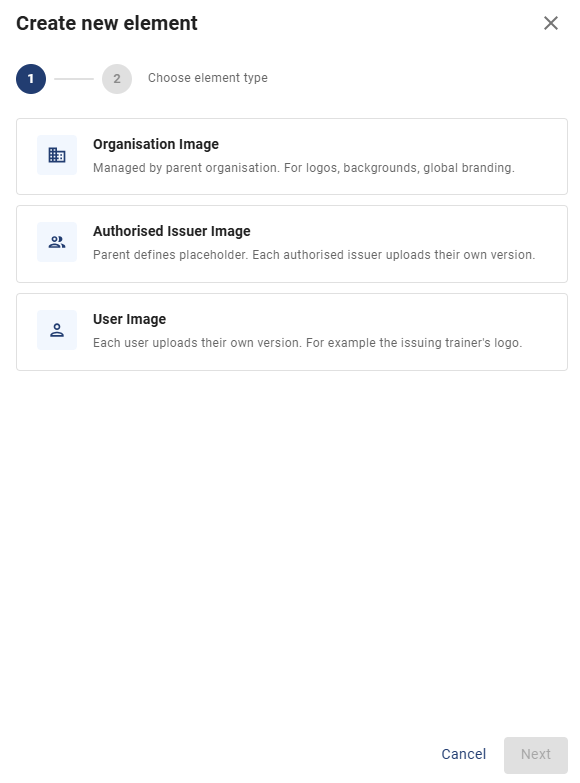
Organisation Image
Managed by the parent organisation. Use it for logos, backgrounds and global branding that should look the same on every credential.
Use case: Your company logo, which appears on all certificates.
-
Authorised Issuer Image
The parent organisation defines a placeholder, and each authorised issuer uploads their own version.
Use case: An authorised issuer's logo, so each sub-account's credentials show their own branding/ logo.
-
User Image
Each user uploads their own version.
Use case: The logo or signature of the trainer who issues the credential.
How to set up an image element
Prerequisites: You must have access to the Organisation Hub and administrator access.
- Go to Settings > Element Library.
- Click Create new element.
- In the pop-up, select the element type: Organisation Image, Authorised Issuer Image or User Image. Click Next.
- Upload a placeholder image.
- Add a label and a description for the element.
- Open your certificate or badge template and place the image element on it. Refer to the section Add an element to a template in this help article.
Each element card in the Element Library shows the image size and how many templates it is connected to.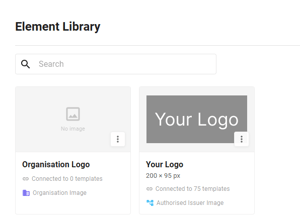
What authorised issuers and users need to do
If you create an Authorised Issuer Image or User Image, each authorised issuer or user must upload their own image.
When they log in to their account, they see a banner:

In the Element Library, the element is marked Pending upload and Assigned to you. They click Upload image to add their version.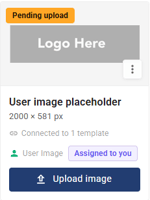
Important: If the image is not uploaded, the certificate or badge is not generated when recipients are added.