
In-line dynamic text fields let you combine dynamic and fixed text in a single paragraph. This keeps the text consistent and prevents unwanted breaks.
For example, you can write a sentence like: *“The course took place from until .”*
Both dates are dynamic fields, so they change for each recipient.
How to add in-line dynamic fields?
Virtualbadge.io templates don’t include in-line dynamic fields by default, so you need to add them yourself.
- Open the Dyn. Content tab: in the Designer menu, select Dyn. Content. You’ll see all the dynamic fields you’ve created for your certificate. (Need help creating dynamic fields? See Dynamic Text.)
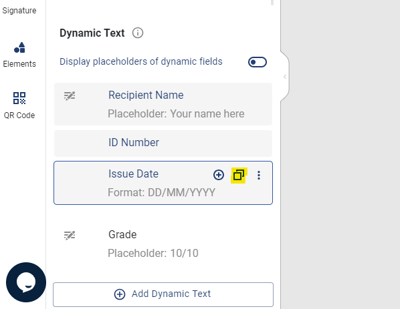
- Copy the dynamic field: choose the field you want to add (for example, Issue Date) and click the Copy icon.
- Insert the dynamic field: in your design preview, click the text field where the dynamic field should appear and paste it into the text. The dynamic field appears in curly brackets, like this: .
Note: typing curly brackets into a text field by hand doesn’t turn it into a dynamic field.
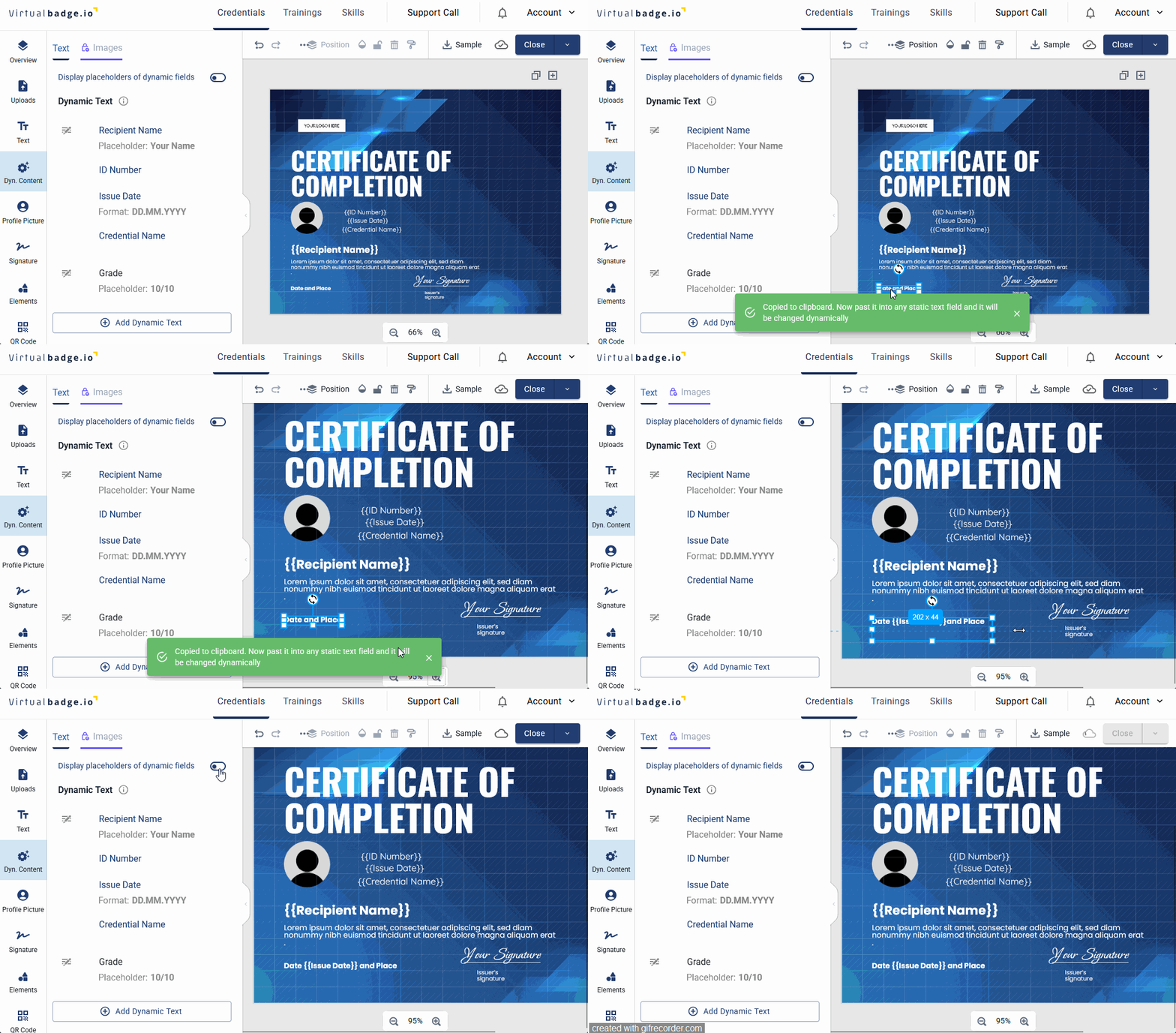
4. Preview the text: to see the text without curly brackets, turn on the toggle to display placeholders of dynamic fields.
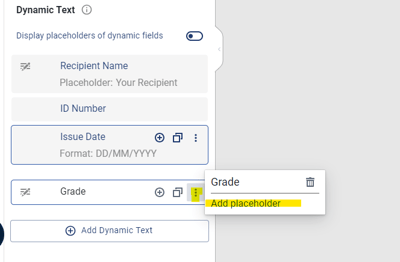
5. Manage placeholders: to edit placeholder text, hover over the dynamic field and click the three vertical dots.
In-line dynamic text fields make it easier to create flexible and dynamic certificates without breaking up your text. Just follow the steps above to add and manage dynamic fields within your paragraphs.