
If you already have a registration list of participants before a training takes place, you can upload this list in advance. This allows you to pre-create participant records with basic information (such as name and email) and later collect additional details through the training form.
This feature is particularly useful when:
-
You already have a registration list
-
You want participants to confirm their identity and complete missing details
-
You want to enrich participant data during form submission
-
You want to ensure a smooth and controlled credential request process
By uploading the registration list beforehand, participants can simply scan the training QR code, identify themselves, and complete the remaining information required to request their digital credential.
By default, participants who submit the form are matched with their pre-uploaded registration record using their email address and name, or the unique ID automatically generated by Virtualbadge.io when registrations are uploaded. You can change this default identifier to another dynamic field if needed, click here to learn how to configure this.
When a participant submits the form, their entered information is matched with the existing record from the uploaded list, and the new data is automatically added to that participant’s entry.
Important: Participants must still complete the form submission in order to request their certificates or badges.
How to Add a Registration List
1. Create a training
-
First, create a training session.
(Refer to the guide: How to create a training)
2. Go to the Recipient tab
-
Open your training and navigate to the Recipients tab.
-
Make sure the training is active: Overview → Reactivate training
3. Upload the registration list
-
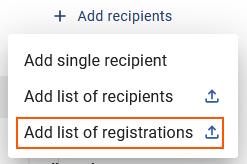
In the top right corner, click: + Add Recipients
-
From the dropdown menu select: Add list of registrations
4. Upload your registrations CSV file
You can either:
-
Download the sample CSV template and add your participant data, or
-
Upload your own CSV file directly
Typically the file includes basic fields such as:
-
Name
-
Email
Once uploaded, each participant's entry will show the status: Pending completion
This means the participant still needs to complete the form.

How Participants Complete Their Registration (Request for their credentials)
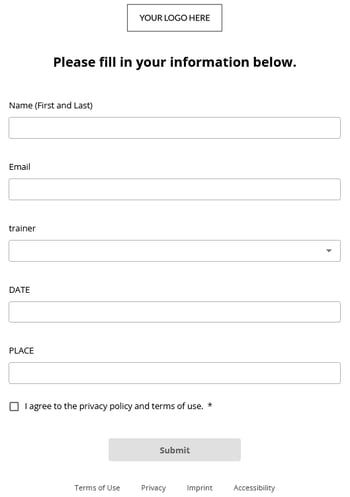
Participants can now scan the training QR code and complete the required form.
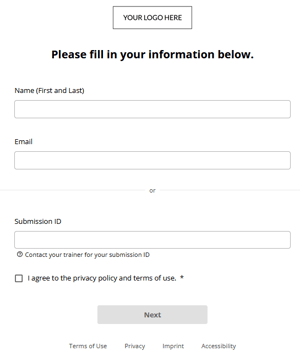
They can identify themselves using:
-
Name and email, or
-
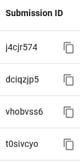
Submission ID (found in the training’s recipient list)
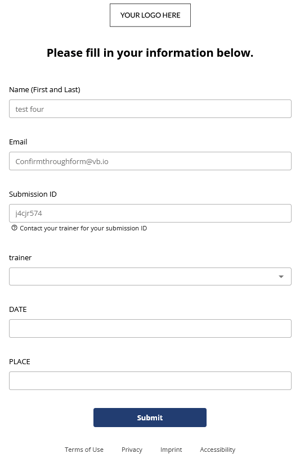
After identification:
-
The next form page displays their name, email, and submission ID.
-
Participants fill in any additional information requested in the form.
-
Once the form is submitted, the new information is automatically added to their existing record on the training recipient table.
If approval workflows are enabled, the standard approval process will then take place before credential emails are sent.
What Happens If the Participant Is Not Found
If the entered details do not match any existing registration entry, the participant will see a message indicating that no matching record was found.

They have two options:
-
Go back and correct their information if there was a typing mistake
-
Click Create a new entry instead to register as a new participant
This ensures that participants can still submit their request even if they were not included in the original registration list.
How Registration Lists Work (Summary)
-
Upload a partial participant list (for example: name and email).
-
Participants scan the training QR code.
-
They enter their identifying information.
-
The system matches their submission with the existing entry.
-
Participants complete the remaining form fields.
-
The additional information is saved to the participant’s record.
This ensures a clean and organized data structure, especially when managing large training events or registrations.